
Guide · AutoLab, in beta
From a packing list to a first proposal, with AutoLab
AutoLab reads your packing list and your question, checks the cargo with you, suggests spaces and packs each one with Auto-Pack. You check every line it reads, and the carrier or operator makes the final decision. This guide follows made-up lists from the question to a new plan.
Start with the question ↓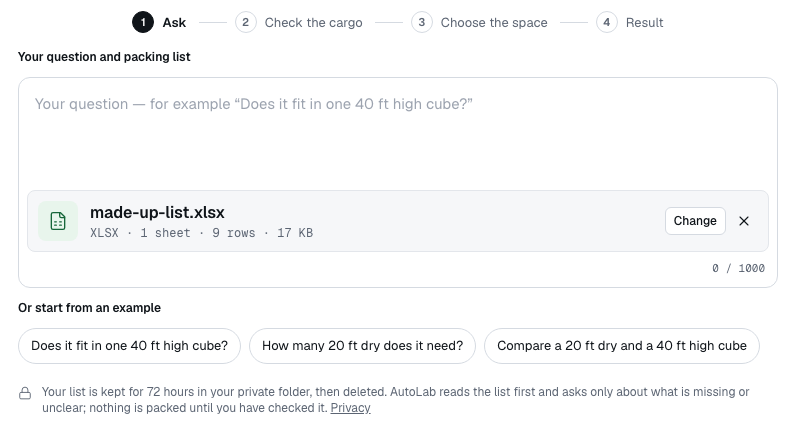
01 · Ask
Write the question, then add the list.
Sign in, then press the round LAB button at the bottom right of the 3D view. Ask is one box for your question and your list: for example, “Can this fit in one 20 ft dry container? If not, compare a 40 ft high cube.” Then add the list. AutoLab reads:
- A spreadsheet. An Excel or CSV file.
- A table or text. Paste a table straight into the box, or a list written as text.
- Pictures. Up to 5 photos or screenshots of one list; on an iPhone you can take the photo.
- A PDF. One file, up to 10 MB.
Before it reads the list, AutoLab shows how many credits it takes. Your file is kept for 72 hours in a private folder only your account can open, then deleted.
02 · Check the cargo
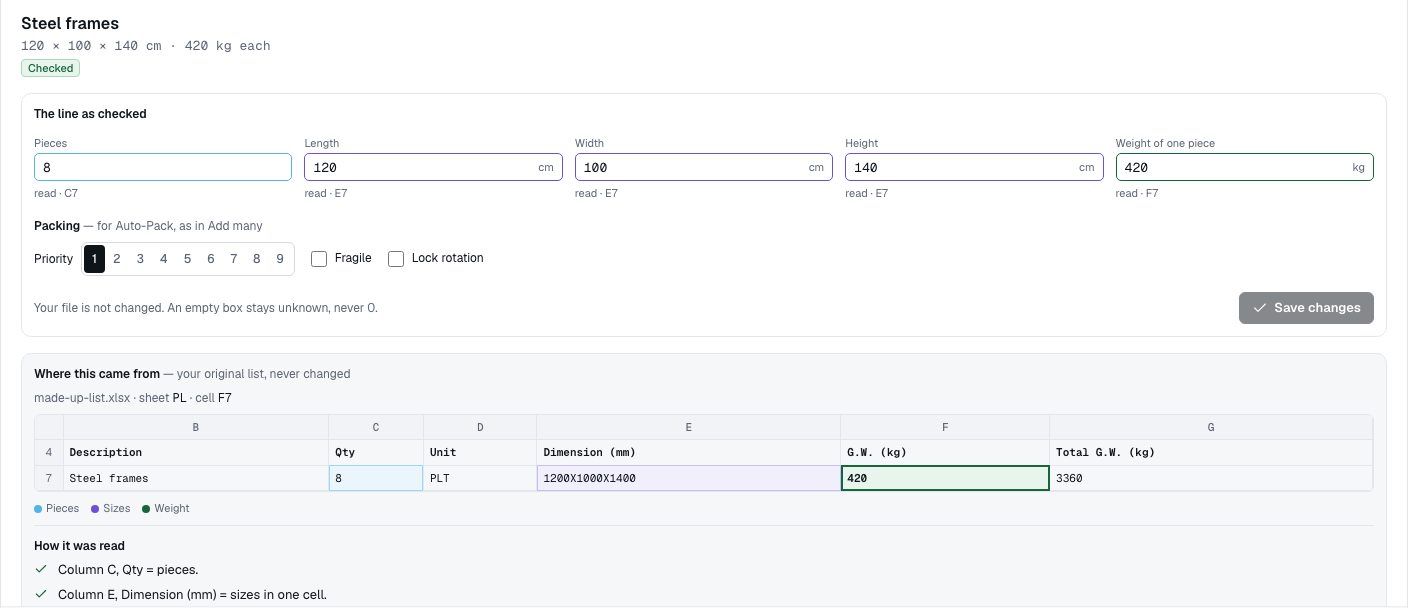
Every line, with where it came from.
Each line shows its pieces, sizes and weight. Open a line to see Where this came from: the cell, the place in the picture, the page of the PDF or the line of text, exactly as your list gives it. Change anything that was read wrongly.
- Unknown stays unknown. A value the list does not give is left empty, never 0.
- Marked. What AutoLab works out is marked estimated; your changes are marked edited.
- Questions first. A question about the whole list, such as a missing unit, comes first; one about a line sits under that line.
Next to fix takes you to the next value to fill or confirm. You can also download the checked list as Excel or CSV.
03 · Choose the space
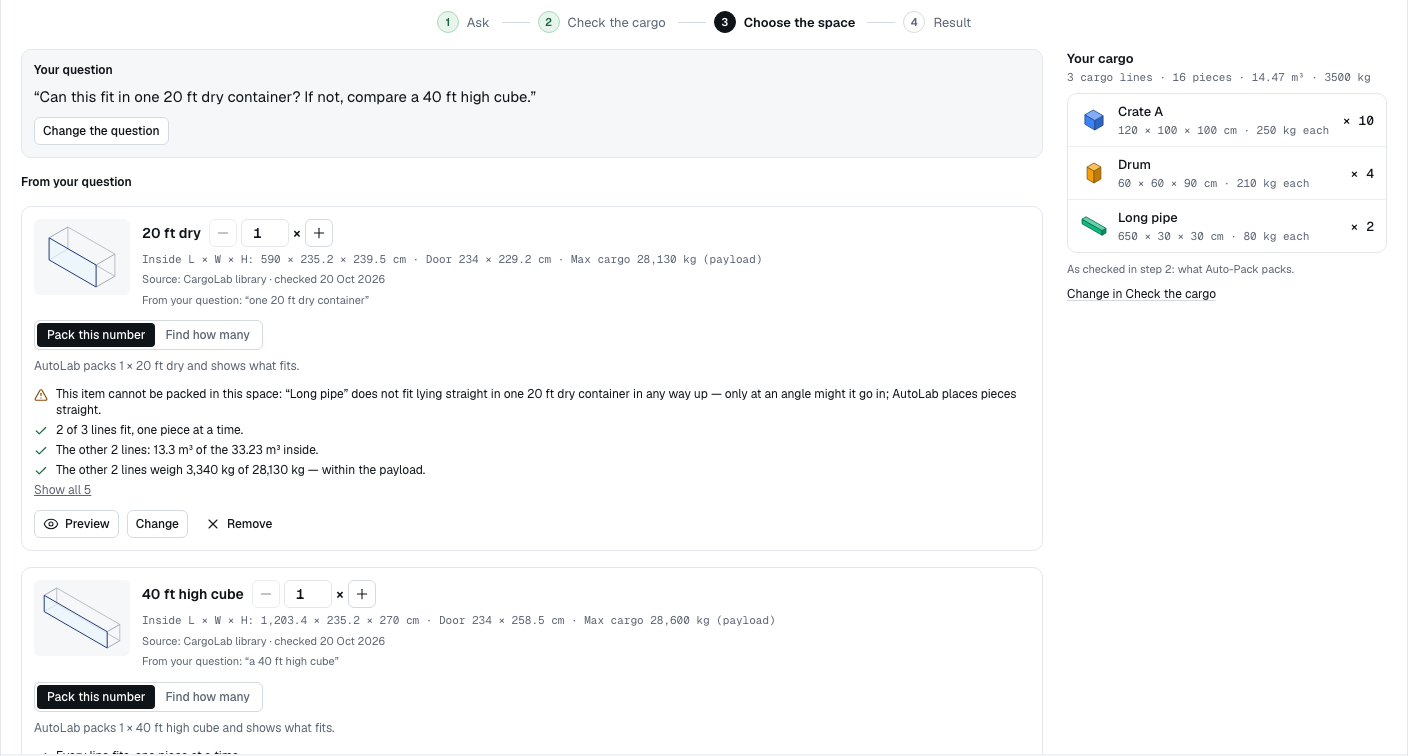
Up to 10 spaces, each checked first.
AutoLab reads your question and suggests up to 10 spaces: CargoLab’s checked sea containers, ULDs, aircraft and road vehicles, or your own fleets and shapes. An aircraft comes whole, or its main deck or lower deck alone, every position in its place.
Each card shows the space in 3D, where its figures come from, and quick checks: what cannot fit and why. Add a space picks another one, in four tabs: Road, Sea, Air, and Fleets and containers.
04 · Result
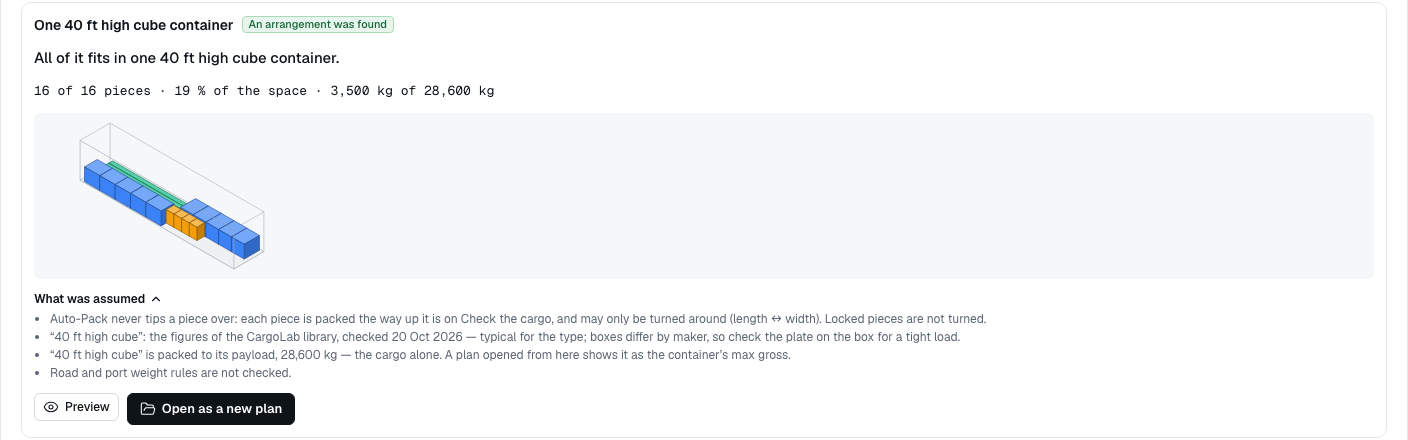
Packed with the real Auto-Pack.
Each space is packed with Auto-Pack, on CargoLab’s server. The card says what was placed, what was not and why (“cannot fit” only with a proof), and what was assumed. Here the two 650 cm pipes do not fit the 20 ft dry, whose inside is about 590 cm long; the 40 ft high cube takes all 16 pieces.
Open as a new plan opens a result in a new tab, so the plan you have open never changes. Then check it on the loadsheet and share it.
05 · On an aircraft
Every aircraft answer is a point to confirm.
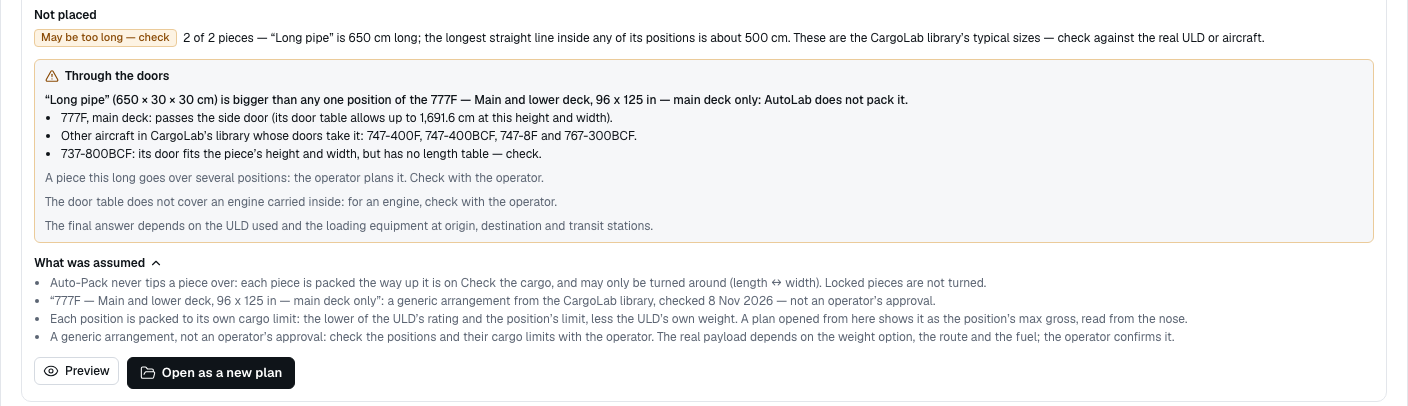
Ask about an aircraft, such as “Does it fit on a 777F main deck?”, and AutoLab packs CargoLab’s generic arrangement of that deck, each position at its own cargo limit, read from the nose.
A piece bigger than any position is not packed. AutoLab says which doors it goes through, by the door tables, and which other aircraft in CargoLab’s library have doors that take it, as points to confirm with the operator. The arrangement is generic, not an operator’s approval: the real payload depends on the route and the fuel.
06 · Credits
3 AutoLab credits a month with every account.
AutoLab reads one packing list for one credit; a long or very wide list takes 2 or 3, and the number shows before the list is read. If AutoLab cannot read a list, no credit is taken. Credits renew on the 1st of each month (UK time) and do not carry over; Your credits shows what you have used. Pro and Company, with more credits, open soon: see Prices.
Try it: Open CargoLab, sign in and press LAB.
The lists on this page are made up. AutoLab is in beta: check every line it reads. A plan is a preliminary proposal; AutoLab does not check dangerous goods or road or port weight rules, and the carrier or operator makes the final decision.