
Guide · Air cargo
How to check what fits on a ULD
Check the contour, the weight and the door. Many ULDs are not plain boxes: they are shaped to follow the aircraft, or built to a contour on a flat pallet, so a box of the same width and height overstates the room. Draw the real outline for a first fit check, then let the carrier confirm it.
See what to check ↓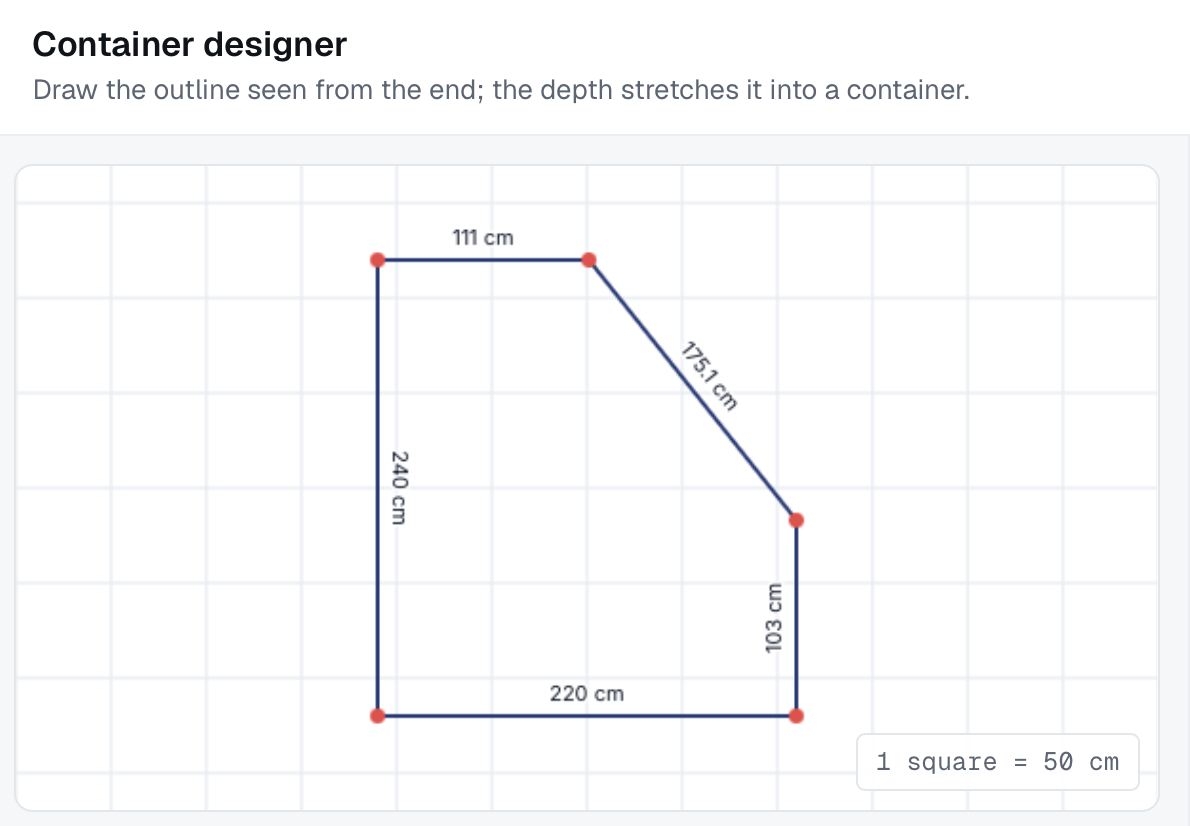
01 · Why air is different
Three things decide the fit.
- The contour. The usable shape depends on the ULD and where it sits in the aircraft.
- The weight. Limits apply to the ULD, its position and the floor under the piece, not to one total.
- The door. A piece can fit the ULD and still not get through the door.
ULD means unit load device: the pallet or container that is loaded onto the aircraft. The figures differ by airline and aircraft, so a plan is only as good as the figures behind it.
02 · Ask the carrier first
What to ask before you plan.
- The usable outline for the ULD and position you will use.
- The position limit. This is the gross weight: the most the built-up ULD may weigh in that position.
- The tare. The ULD’s own weight.
- The payload. The position limit less the tare: the limit for the cargo and the build-up materials, such as spreaders and straps.
- The door size and any length or height limit.
- The floor limit, for heavy pieces on a small footprint.
- Anything special: dangerous goods, or cargo that needs its own handling.
In CargoLab today, enter the payload in the Max gross box. It adds up only the cargo you enter, so allow for the build-up materials too.
03 · Draw the shape
Draw the end outline, then set the depth.
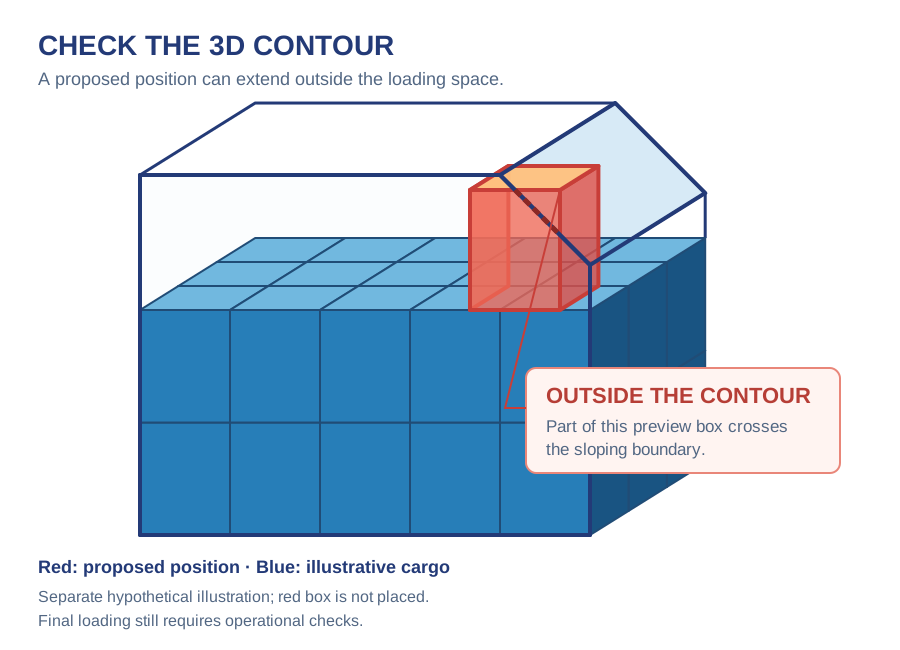
A plain box would include the cut-away corners, and a tall piece could be planned where there is no room. With an account, draw the end outline in the designer, give it depth, and set its payload. With every rule on (the default), cargo can only go inside that outline. See how to model a custom loading space.
Use the carrier’s figures for the ULD you will really use. CargoLab’s container library is being rebuilt with checked figures, so for now you enter your own.
04 · Set the pieces up
Tell the plan what matters.
- Priority. 1 is packed first. Use it for cargo that must fly.
- Fragile. Nothing is stacked on top of it.
- Lock rotation. The piece is never turned.
- Height. CargoLab keeps the height you enter upright. If a piece may lie on its side, enter it that way.
Auto-Pack always keeps these rules. When you place pieces by hand, they hold while every rule is on, which is the default.
05 · Know the limits
What a fit check does not cover.
With every rule on (the default), CargoLab checks that each piece stays inside the shape, is supported, and keeps within your weight limit. It does not check:
- Weight and balance of the aircraft.
- Floor loading under a heavy piece.
- Restraint: how the load is netted and tied down.
- The door and the way in.
These stay with you and the carrier, who makes the final decision.
06 · Send it for review
Give the carrier something to check.
With an account, send a PDF report or a read-only link. Each position has its own name, so everyone can refer to the same place. See how to share a load plan.
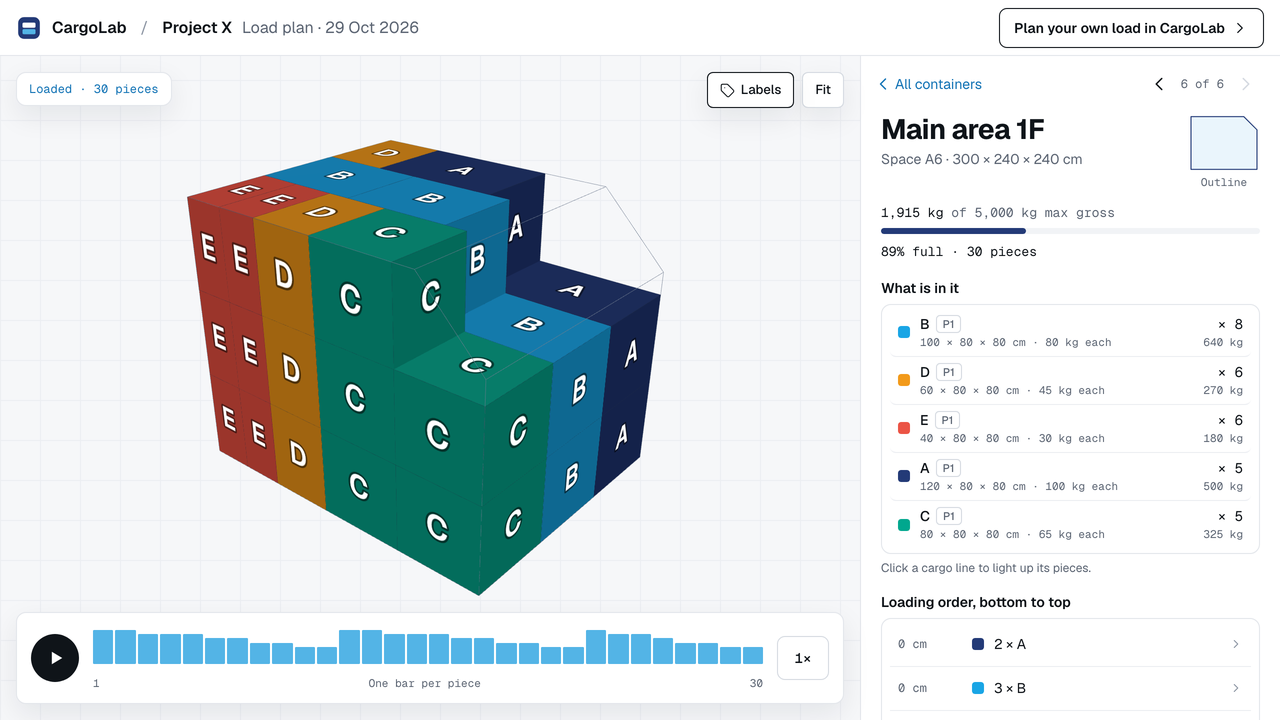
See a finished plan: open the fictional Project X example in 3D ↗ (no account needed). A plan in CargoLab is a preliminary proposal: check the real equipment and cargo, and the carrier makes the final decision.