
Guide · Custom spaces
How to model a custom loading space
Measure the inside of the space, draw its end outline, then give it a depth and a weight limit. Cargo can only go inside that outline, so a sloped or cut corner reduces what fits. A plain box of the same width and height would overstate the room.
See what to measure ↓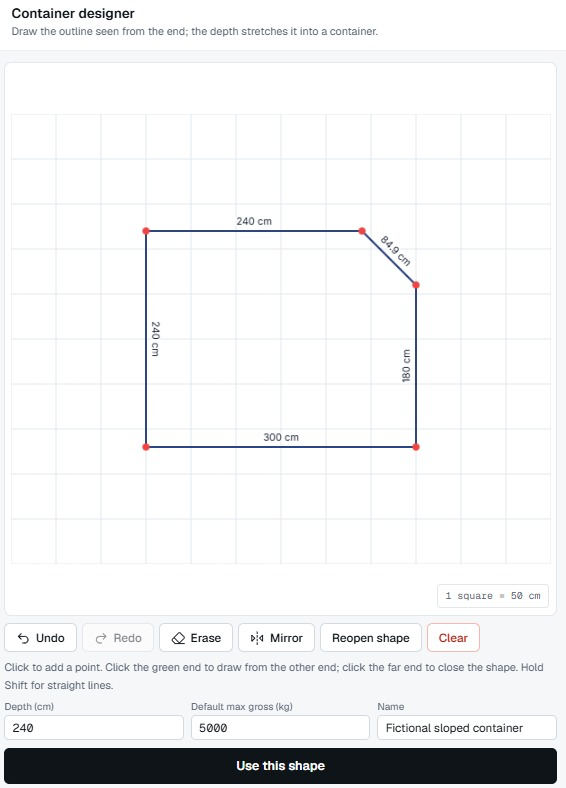
01 · Measure
What to measure first.
- Inside width, height and depth, at the narrowest point, not the outside.
- Every slope or cut corner: how far it runs along each side.
- Anything fixed inside: ribs, fittings or rails that take up room.
- The door or opening. Cargo has to get in, not only fit once inside. CargoLab models the inside shape, not the door, so check this separately.
- The weight limit, from the equipment owner or the carrier. CargoLab adds up the cargo only, so take off the container’s own weight if the limit includes it.
Use measurements for the equipment you will really use. A checked container library is being rebuilt; until then a plain box or your own drawn shape is the way in.
02 · See why it matters
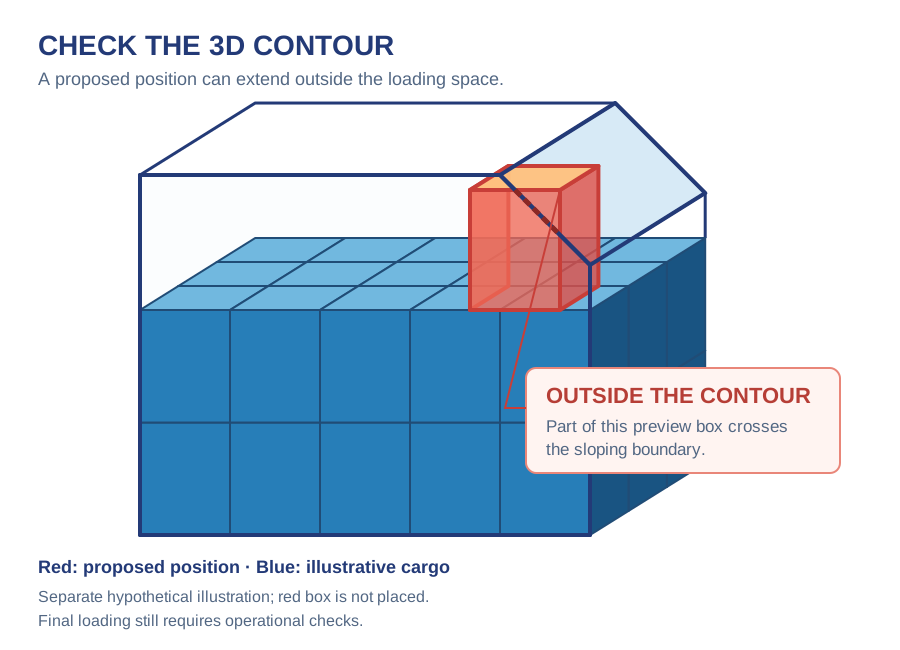
A cut corner is space you cannot use.
The fictional outline is 300 cm wide and 240 cm high, with a 60 × 60 cm cut at the upper right, and 240 cm deep. Modelled as a plain box it would include that corner, and a tall piece could be planned where there is no room.
The red box in this drawing crosses the slope, so it is not a valid position. It is a separate illustration, not part of the example plan.
03 · Draw it
Draw the end, then set the depth.
The designer needs an account. Draw the end outline, enter the depth, name the space and set its maximum gross. The shape then works like any other container: add it to a plan, place cargo by hand or run Auto-Pack.
Auto-Pack keeps cargo inside the shape you entered. It cannot tell you whether your measurements are right, and it does not certify the equipment or the load.
04 · Use it
Give each space its place in the plan.
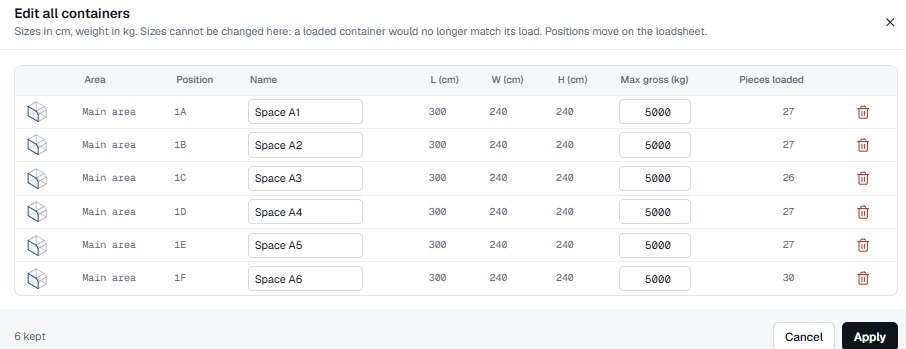
Spaces sit in areas and positions, such as 1A to 1F, so everyone can refer to them the same way. Edit all lists every position with its name and maximum gross, so you can check each limit in one place.
See a finished plan: open the fictional Project X example in 3D ↗ (no account needed). A plan in CargoLab is a preliminary proposal: check the real equipment and cargo, and the carrier makes the final decision.