
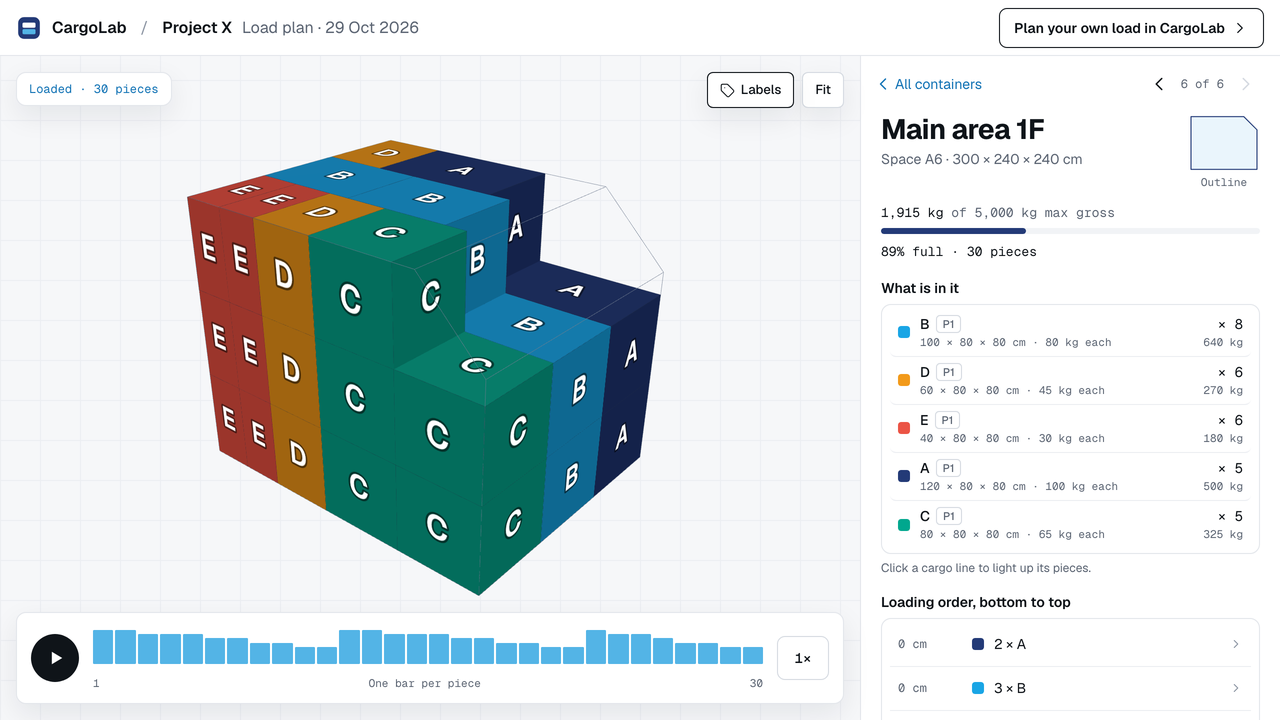
3D shared plan
Open any position.
See what is in each of the six positions, with its loading order. The build-up controls let a recipient explore the proposal.
Explore the real shared plan ↗3D cargo load planning
From a packing list to a reviewable 3D proposal: model the loading space, see what is placed and share what still needs a decision.
For freight forwarders, charter teams and shippers planning air cargo and custom spaces. Sea and road work too, with your own dimensions.
See it work
Containers and cargo go in, Auto-Pack proposes an arrangement, and you check it in 3D and on the loadsheet before you share it. Filmed in the real app with a fictional example.
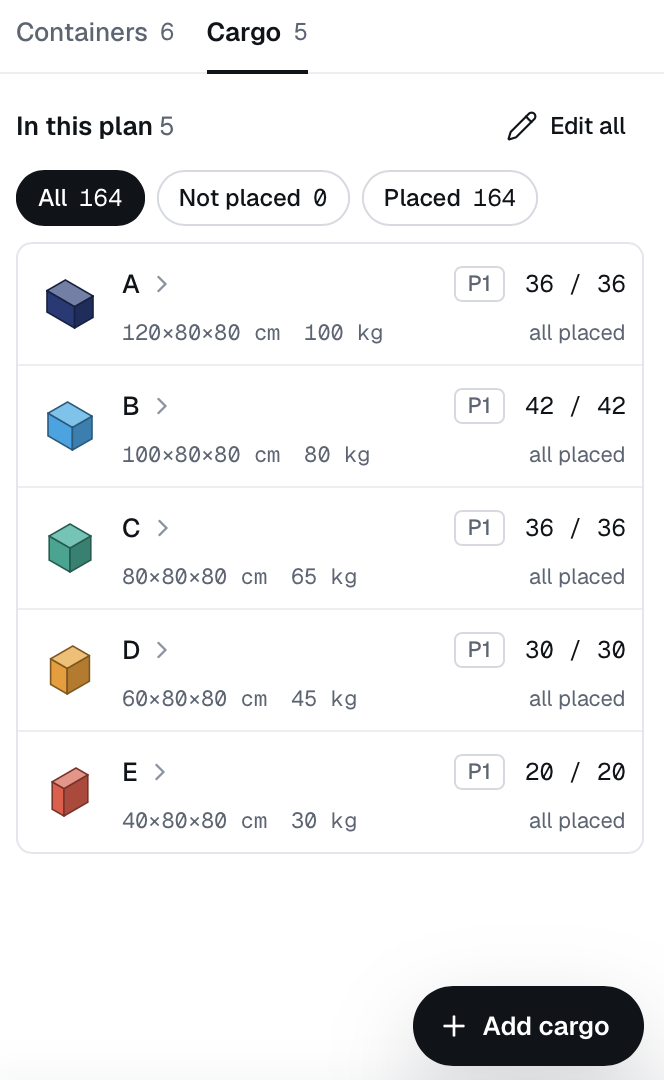
Cargo list
Review packaged dimensions, weight per piece and quantity. Check what was placed and what remains outside the current arrangement.
With an account, draw a two-dimensional outline and give it depth. Then place boxes by hand or use Auto-Pack.
Loadsheet
Keep multiple containers organised by area and position. The loadsheet brings the arrangement and cargo contents together in one planning overview. It is not the aircraft loadsheet that covers weight and balance.

See where a container belongs within its area and row.
Check the cargo lines and piece counts assigned to a position.
Review volume, weight and placed pieces alongside unplaced cargo.
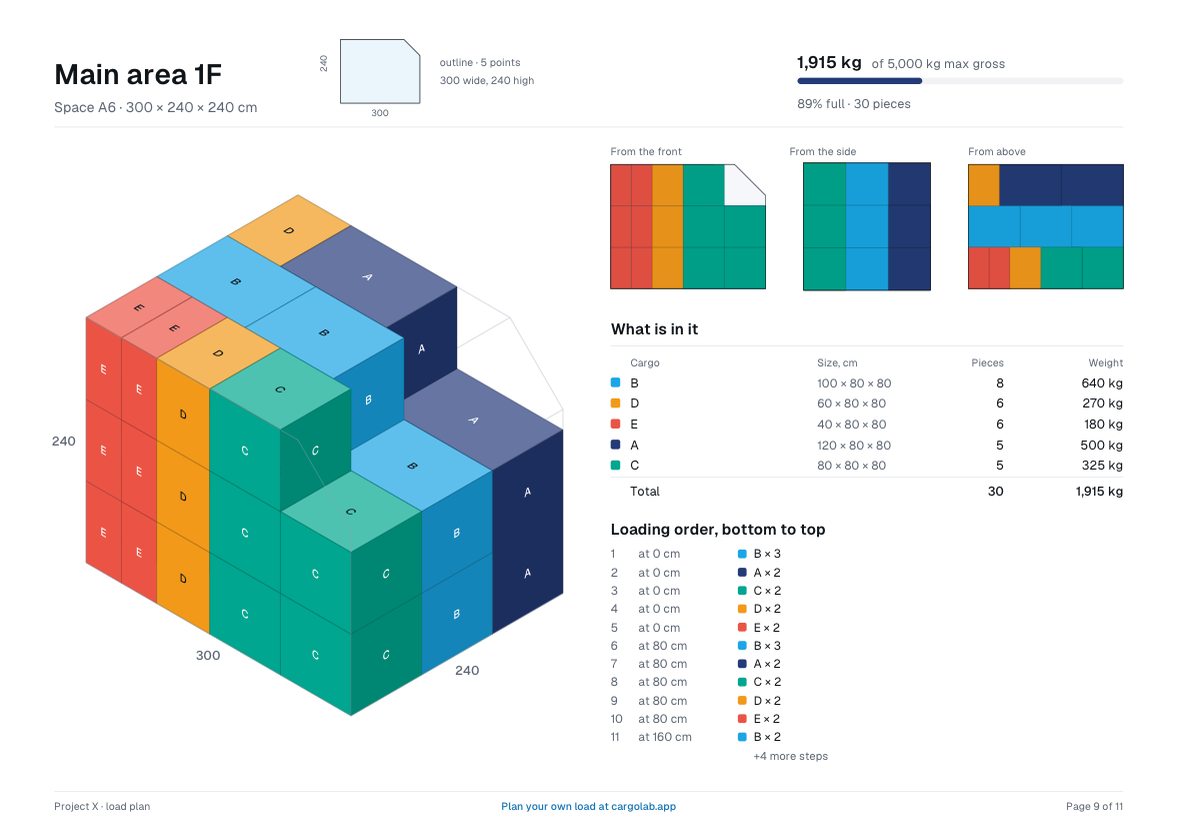
Container report
Send a report that combines load totals, front, side and top views, and the placed-piece list. Give the next reviewer the context behind the proposal.
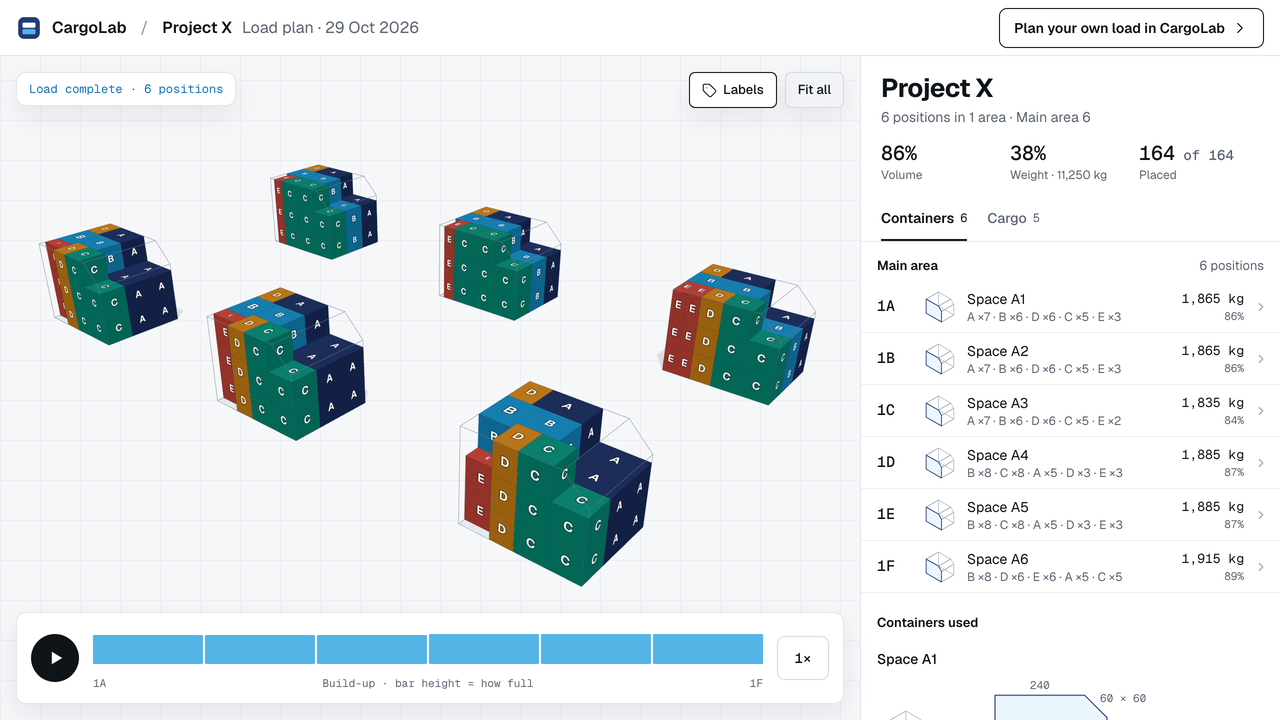
This fictional plan places 164 pieces across six sloped spaces, with 11,250 kg placed. The app’s 86% compares cargo volume with the outer rectangular dimensions; the contour removes some of that space. The example is for preliminary planning and needs operational review. Inspect the actual shared plan ↗.
Inside CargoLab
Explore the actual planning tools: review cargo, model a shaped space, inspect individual positions and share an interactive snapshot. Screens below show a fictional demonstration.
3D shared plan
See what is in each of the six positions, with its loading order. The build-up controls let a recipient explore the proposal.
Explore the real shared plan ↗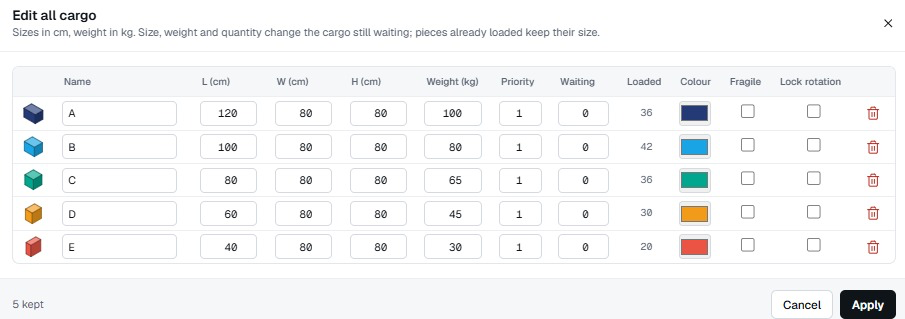
Cargo details
Change dimensions, weight, priority, colour and handling options in one place. The panel shows loaded and waiting counts; the 3D icons make the cargo types easy to identify.
See the packing-list guide →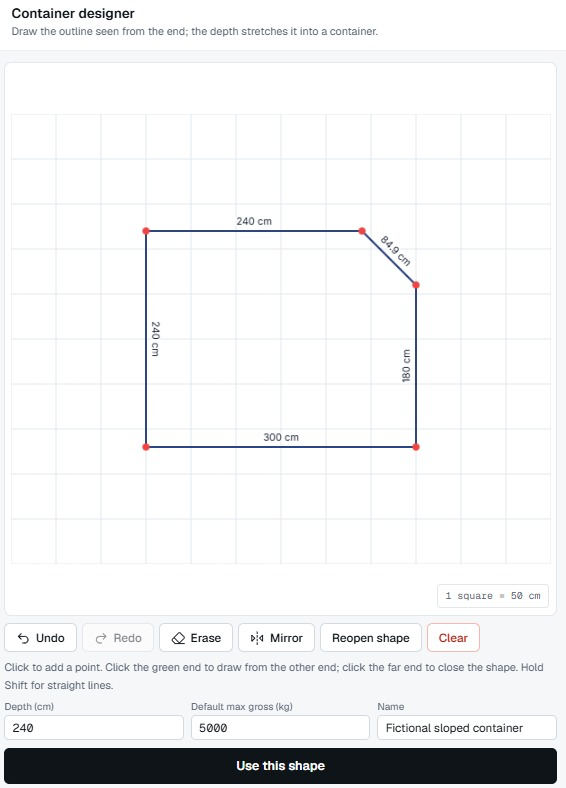
Custom shapes
Draw the end outline, set its depth and gross limit, then use that shape in your plan. This fictional example has a sloped corner; the cut-off area is not available for cargo.
Explore custom shapes →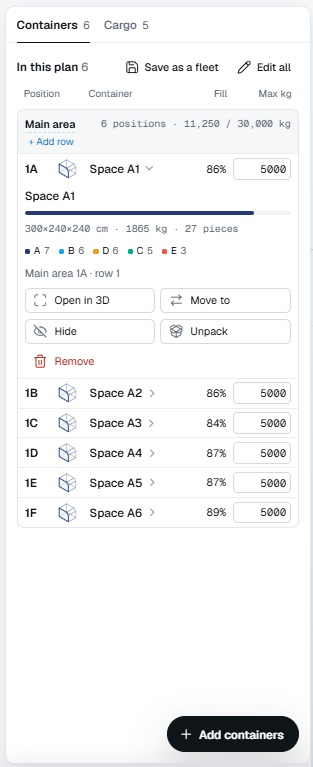
Containers and positions
Review the six positions, their fill and contents, then open one in 3D. Position controls also show options to move, hide or unpack a container.
Explore the position guide →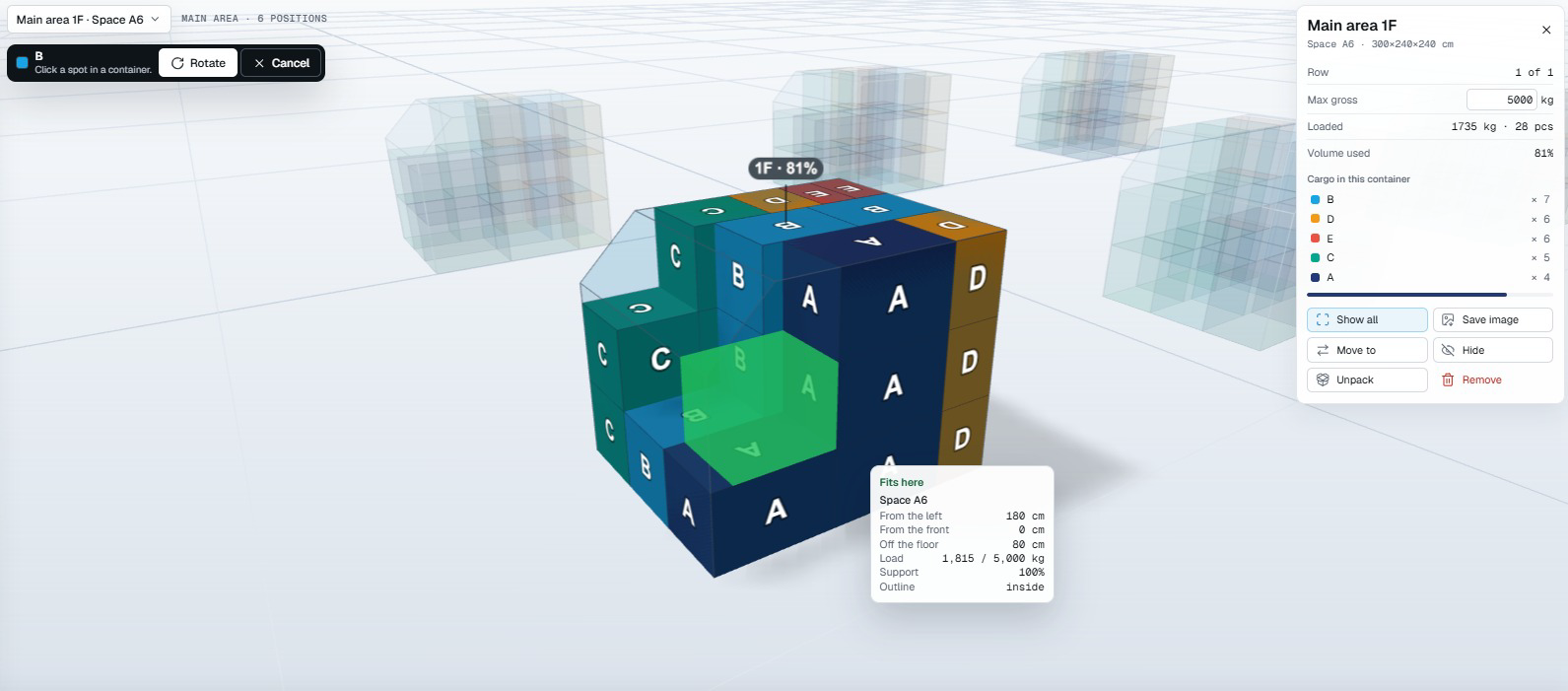
Manual placement
Choose a piece and preview a location in 3D. The interface shows a fit indication, support and position details; rotation is available. This is a separate editing state from the 164-piece snapshot.
Review a planning exception →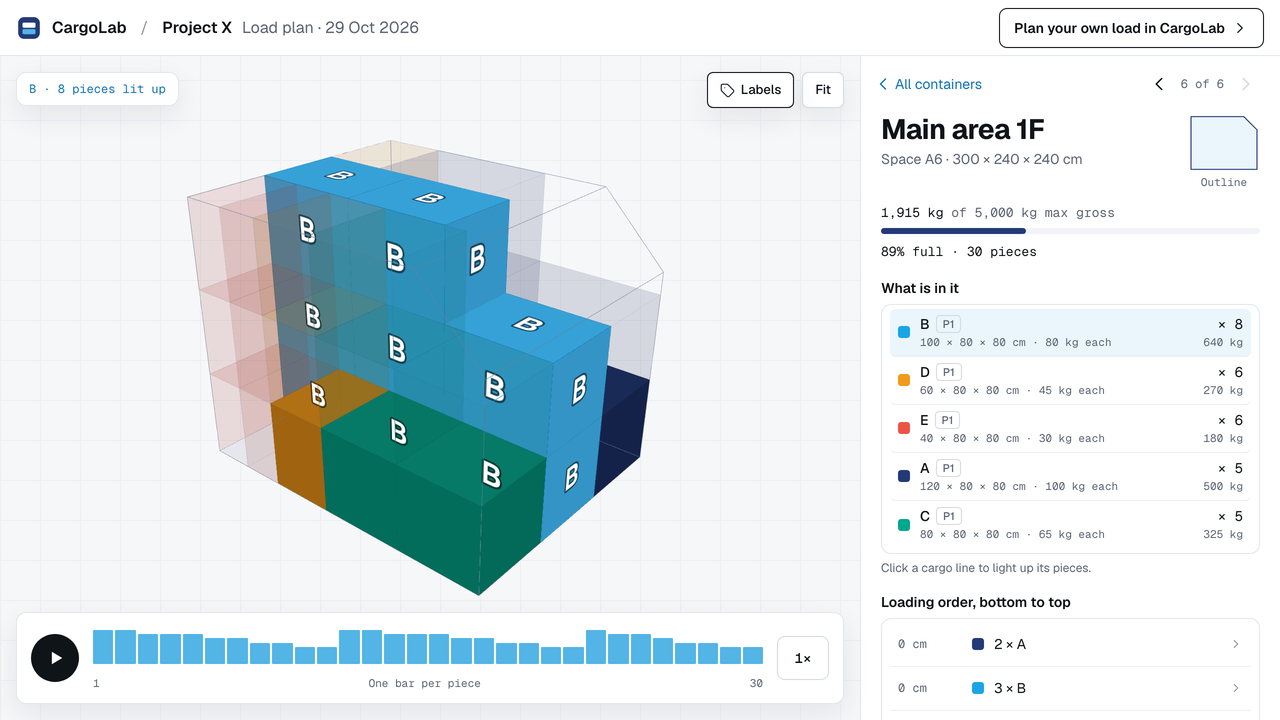
Interactive review
Open a position in the shared plan and select a cargo line to highlight its pieces. Review the pieces listed from bottom to top and use the build-up controls. The warehouse sets the real loading sequence.
Inspect position 1F ↗The plan is a preliminary proposal. Verify actual equipment, access, weight limits, handling and restraint; the carrier makes the final air-freight loading decision. A successful run does not prove the minimum number of spaces.
AutoLab · In development
AutoLab is being developed to help read packing lists, highlight uncertain details and use CargoLab’s packing engine to explore selected spaces. You review the data and the result.
Document reading, equipment options and availability are still being tested.
As a guest you can open a finished example, start your own plan and place cargo by hand; your work stays on your device. An account adds Auto-Pack, cloud save, CSV and PDF export, share links and the container designer. No payment details needed. Ready-made containers are being rebuilt with checked figures; today you enter your container's inside dimensions or draw your own shape. Verify the actual equipment and limits for your shipment.
Use centimetres, millimetres or inches for dimensions, and kilograms or pounds for weight. Exported plan CSV files use centimetres and kilograms.
CargoLab provides a preliminary geometric arrangement. The carrier makes the final air-freight loading decision and checks payload, balance, restraints, access and operational requirements. Auto-Pack does not guarantee a globally optimal arrangement.
See how the pieces could be arranged and what still needs checking.
First-time visitors can open a finished example. No account needed.