
Guide · Packing lists
How to turn a packing list into a 3D load plan
You need five facts for every cargo line: packed length, width and height, weight per piece, and quantity. Add the inside size and weight limit of the space, and you can place the cargo by hand or let Auto-Pack propose an arrangement. This guide follows a fictional five-line list into a six-position plan.
Start with the checklist ↓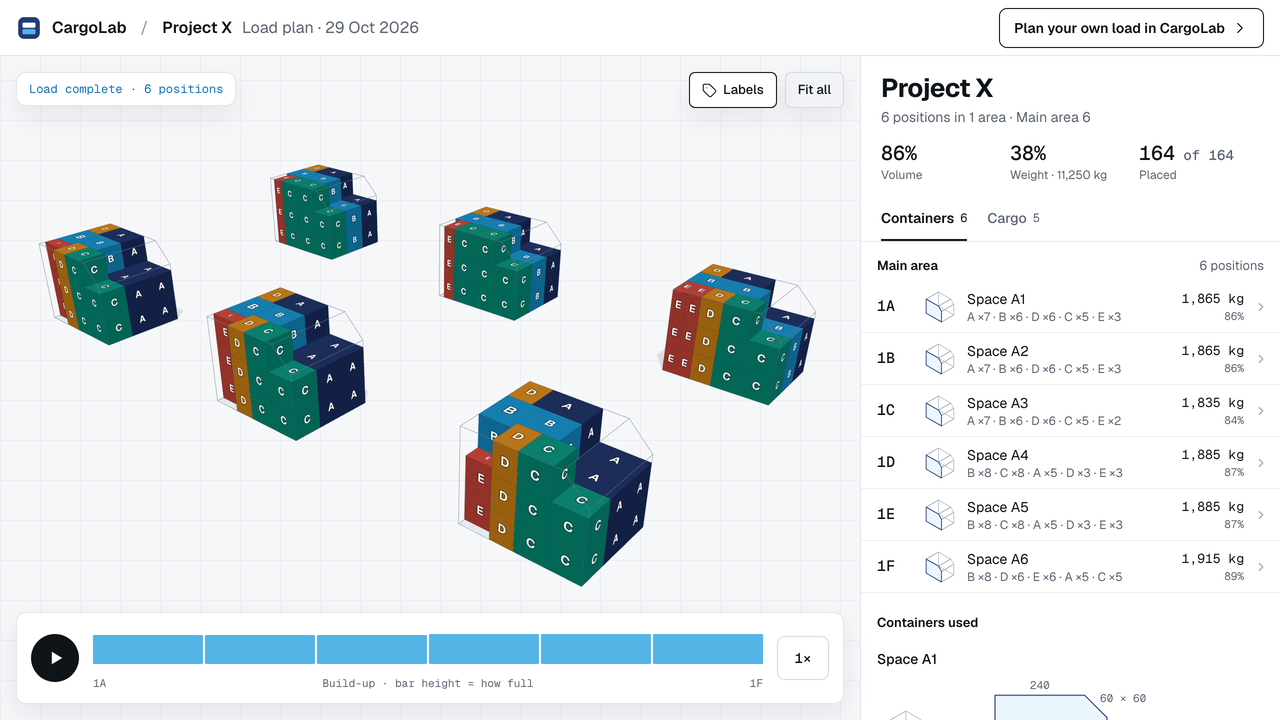
01 · Check the list
What a packing list must say before you plan.
- Packed sizes, not product sizes. Use the outside of the carton, crate or pallet.
- One set of units. Centimetres or inches, kilograms or pounds, but not mixed.
- Weight per piece. A line total alone does not tell you what each piece weighs.
- Quantity per line. Be clear whether a “piece” is a carton or a whole pallet.
- Handling notes. What is fragile, what must stay upright, what must travel.
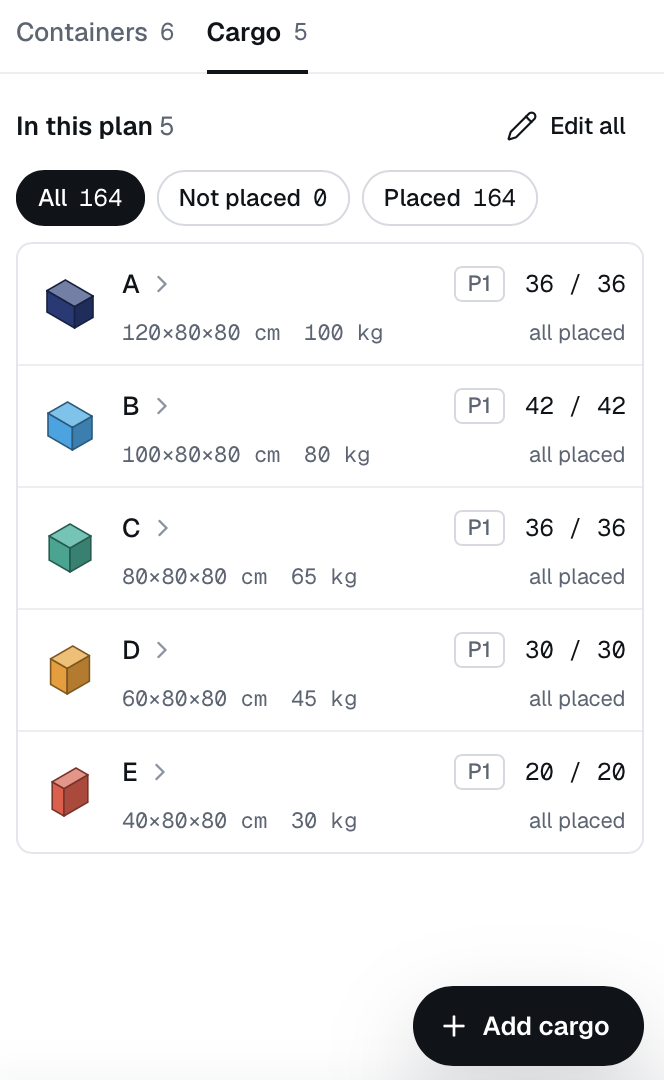
The example’s five lines come to 164 pieces and 11,250 kg:
| Line | L × W × H | kg / piece | Qty |
|---|---|---|---|
| A | 120 × 80 × 80 | 100 | 36 |
| B | 100 × 80 × 80 | 80 | 42 |
| C | 80 × 80 × 80 | 65 | 36 |
| D | 60 × 80 × 80 | 45 | 30 |
| E | 40 × 80 × 80 | 30 | 20 |
02 · Set up the space
Enter the space you actually have.
A plain box needs the inside length, width and height, plus a weight limit. CargoLab adds up the cargo only, so if your limit includes the container’s own weight, take that off first. If the space has a sloped or cut corner, draw its outline instead.
A checked container library is being rebuilt, so today you enter your own measurements. Each fictional space here measures 300 × 240 × 240 cm with a 60 × 60 cm cut in one upper corner.
03 · Enter the cargo
Add one line at a time, or a whole list.
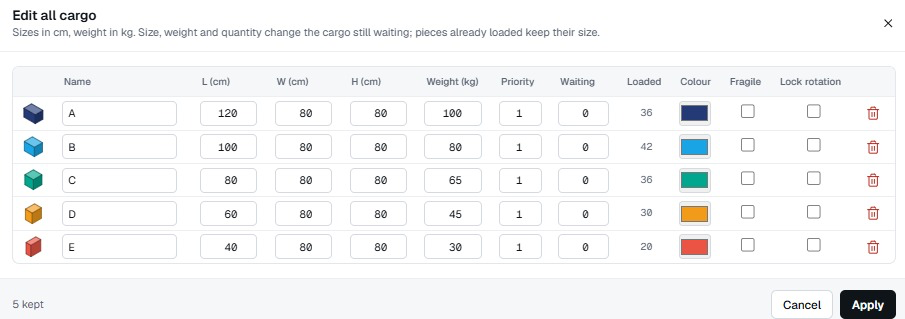
Add cargo takes one line: its size, weight and quantity. Add many opens a table for a whole list, and takes a CSV file. Then set the rules that matter for each line:
- Priority. 1 is packed first. Use it for cargo that must go.
- Fragile. Nothing is stacked on top of it.
- Lock rotation. The piece is never turned.
CargoLab keeps the height you enter upright and turns pieces only on the floor plan. If a piece may lie on its side, enter it that way.
04 · Pack it
Place it by hand, or run Auto-Pack.
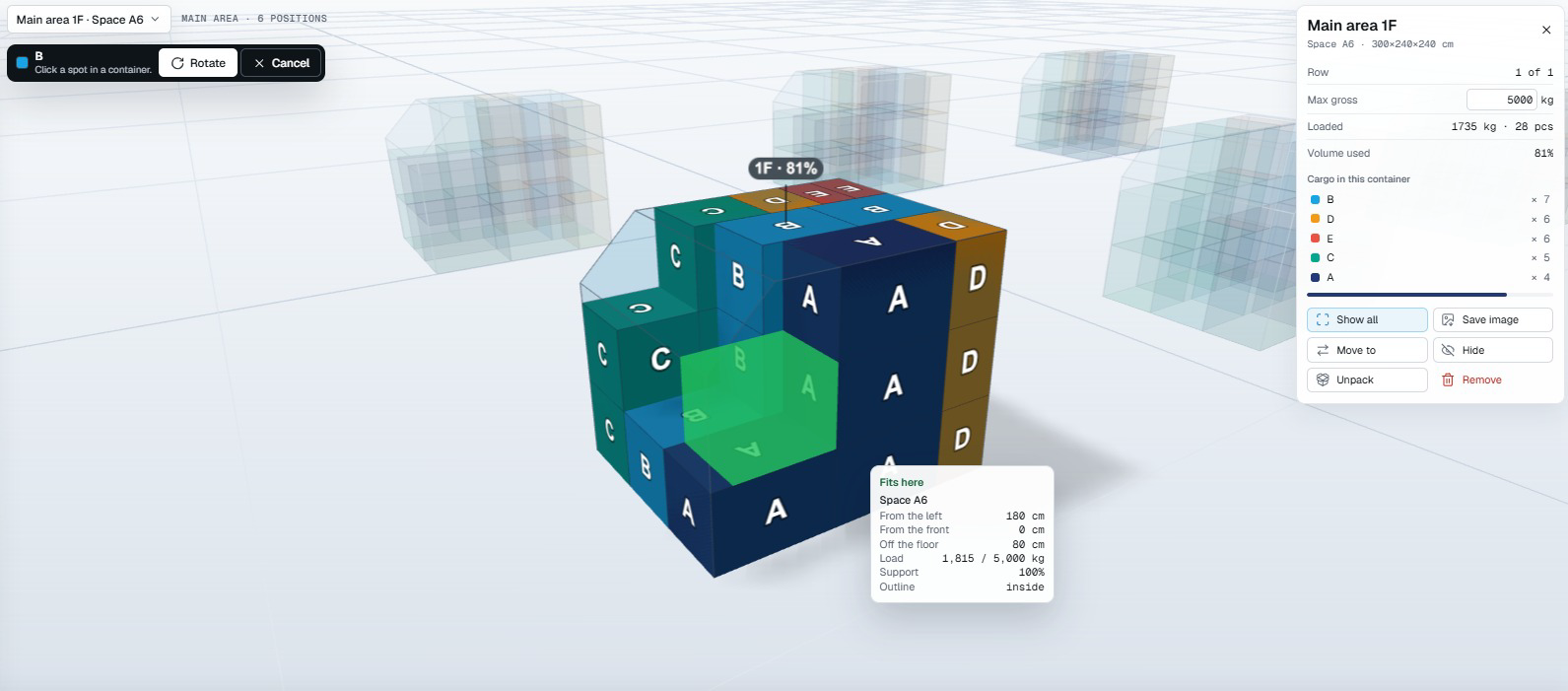
As a guest you can place pieces yourself: pick a piece, preview a spot in 3D and put it down. With an account, Auto-Pack proposes an arrangement that keeps to your spaces, weight limits and support, fragile and priority rules. It starts again from scratch, so anything placed by hand is packed again.
In the example Auto-Pack placed all 164 pieces. That does not prove that six spaces is the fewest possible, or that another list would fit.
05 · Review
Read the result position by position.
The loadsheet shows what is in each position. Check that every piece is placed. If some are not, work out why before you share the plan. The example’s 86% compares the cargo with the outer box of each space, so it is not the share of the usable shape.

See a finished plan: open the fictional Project X example in 3D ↗ (no account needed). A plan in CargoLab is a preliminary proposal: check the real equipment and cargo, and the carrier makes the final decision.