
Guide · Exceptions
Why cargo does not fit in a load plan, and what to check
Cargo usually stays out of a plan for one of five reasons: a piece is bigger than the space, the shape of the space gets in the way, the space is already full, a weight limit is reached, or a handling rule leaves no allowed spot. Spare volume does not prove that a piece fits: in this example the space is two-thirds empty and the crate still stays out.
See the example ↓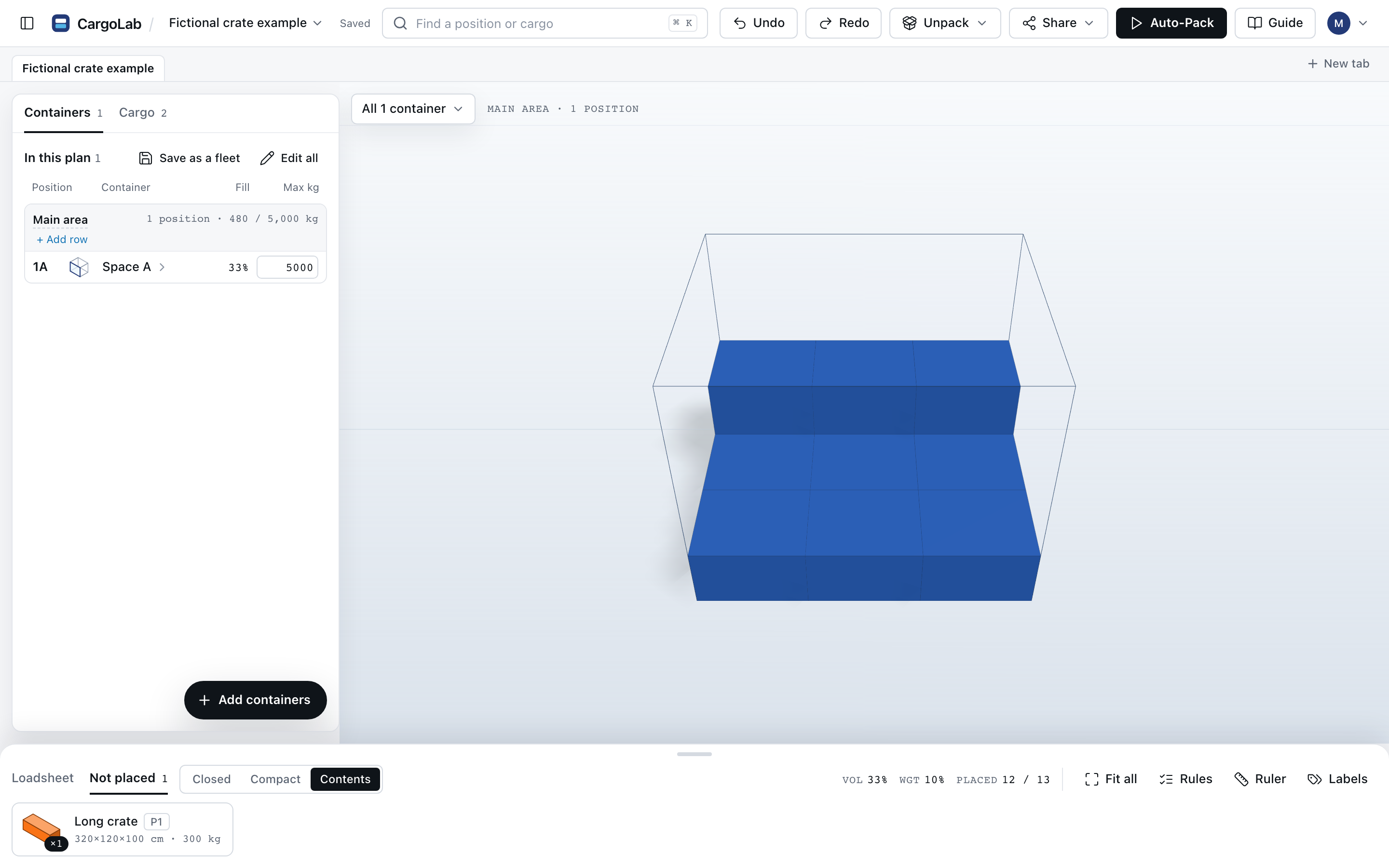
01 · The example
A space two-thirds empty, and a crate that cannot go in.
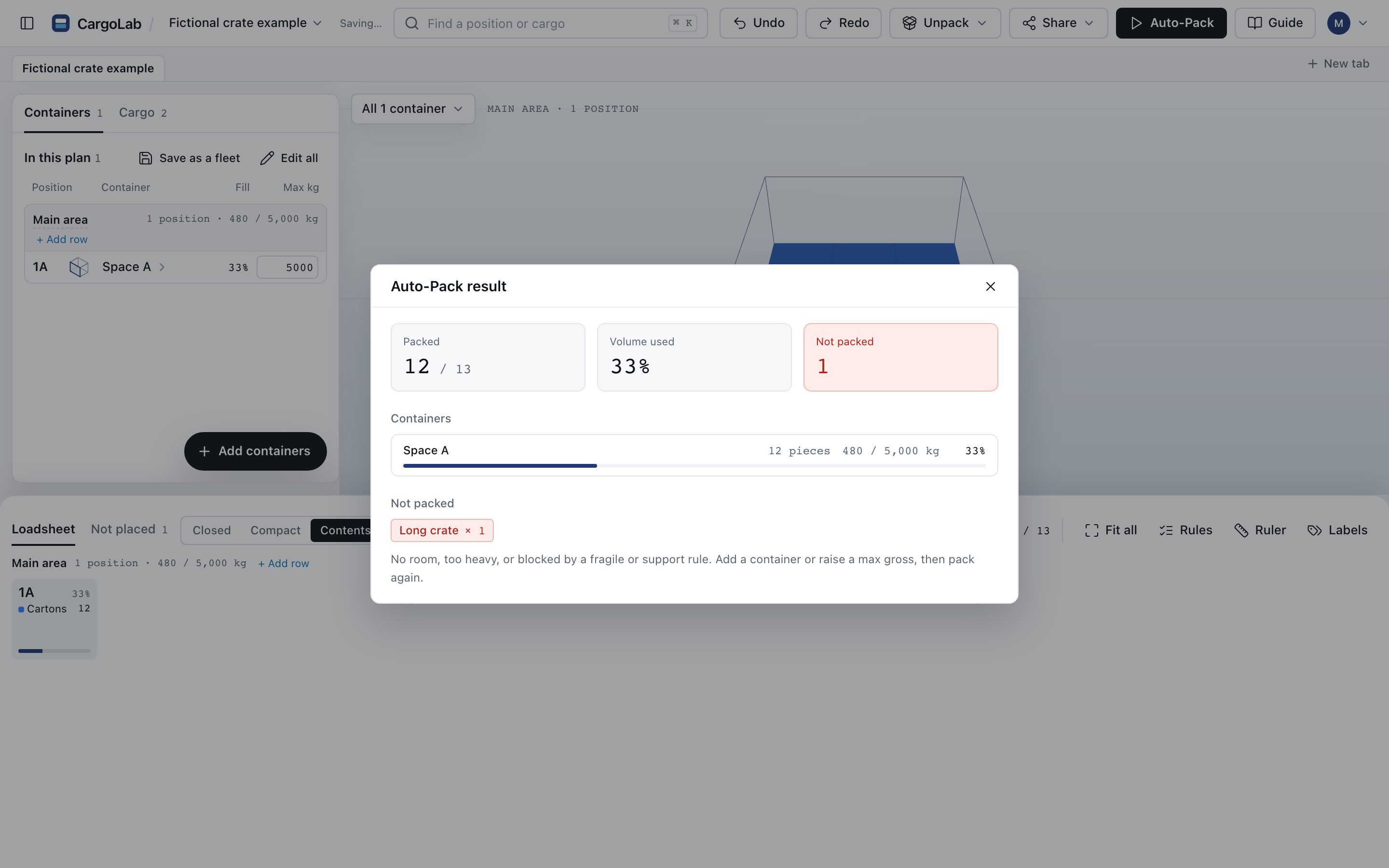
This small fictional plan is separate from Project X. One plain space measures 300 × 240 × 240 cm, with a 5,000 kg limit. The list has 12 cartons of 100 × 80 × 60 cm and one long crate of 320 × 120 × 100 cm.
Auto-Pack placed the 12 cartons and left the crate out. After packing, 11.5 m³ of the space is still empty, and the crate is only 3.8 m³. It still cannot go in, because its 320 cm side is longer than every side of the space: 300, 240 and 240 cm.
02 · Two kinds of “no”
A size mismatch is proof. A failed run is not.
A size mismatch is simple arithmetic: a piece longer than the space cannot go in square to the walls, whatever else is in there. CargoLab does not model tilted cargo, and a tilted load would be a separate decision for the people loading it.
A failed Auto-Pack run is different. The piece may fit on its own, but the run found no spot for it alongside the other cargo. Auto-Pack’s message covers the possibilities: “No room, too heavy, or blocked by a fragile or support rule.” That does not prove that no arrangement exists.
03 · Check in this order
Before you call it a no-fit.
- Size. Sort the piece’s three sides from longest to shortest, and do the same for the space. Compare them in that order. If any side of the piece is longer, it cannot go in square to the walls. CargoLab keeps the height you enter upright, so if a piece may lie on its side, enter it that way.
- Shape. Slopes and cut corners take away room that the outer size suggests.
- Room. The other cargo may already have taken the space this piece needs.
- Weight. Compare the piece with what is left of the limit. CargoLab counts cargo only, not the container’s own weight.
- Rules. Nothing goes on a fragile piece, a piece with Lock rotation is never turned, and every piece needs support underneath.
- The packed size itself. Check the measurement before you change the plan.
- The door. CargoLab does not check the opening, so a piece that fits on screen may still need checking there.
04 · Decide
What to do with a piece that stays out.
For a size mismatch, the choices are a larger space, a different crate, or a different way of shipping that piece. For a failed run:
- Give the other lines priority 2 or higher, so this piece is packed first, and run Auto-Pack again.
- Try the piece by hand. CargoLab shows whether a spot passes its checks.
- Add another space, or move some cargo to it.
Whatever you decide, say so when you share the plan.
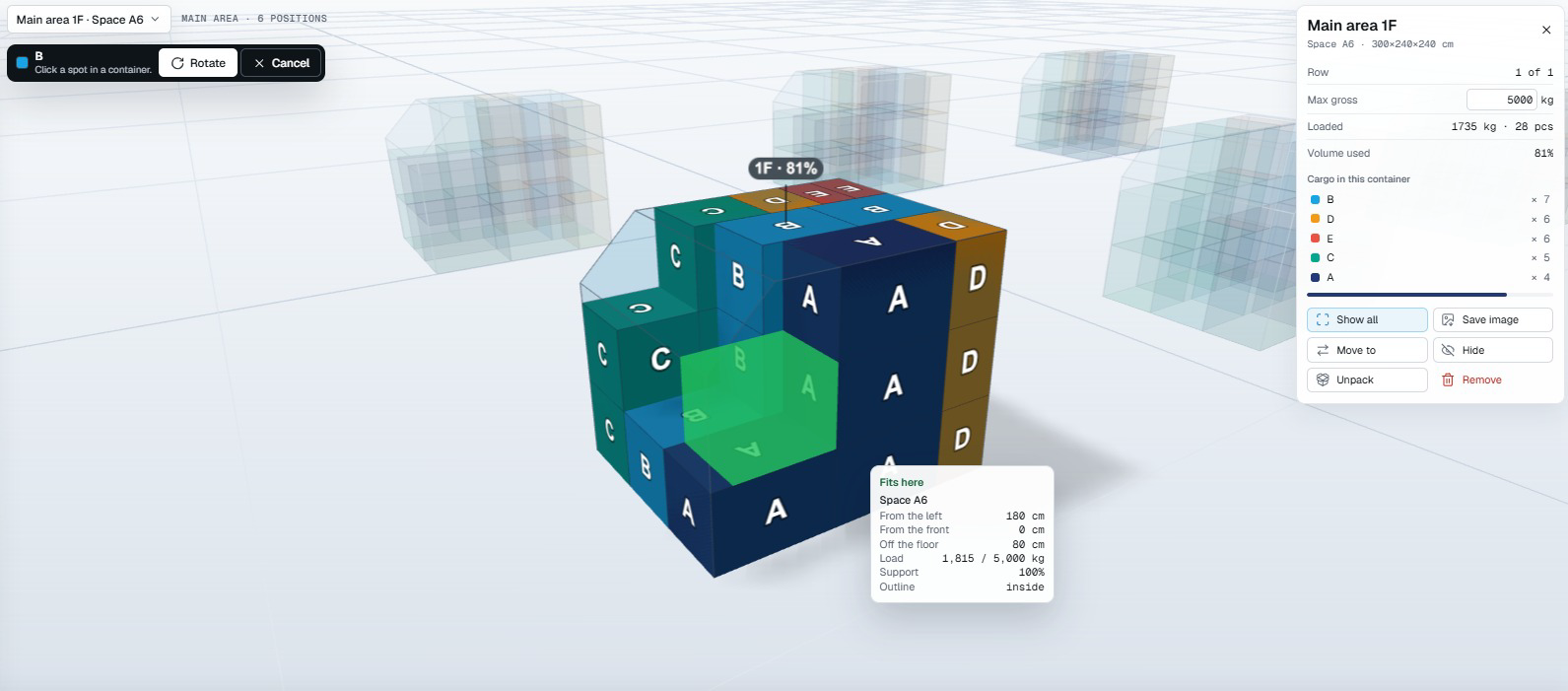
See a finished plan: open the fictional Project X example in 3D ↗ (no account needed). A plan in CargoLab is a preliminary proposal: check the real equipment and cargo, and the carrier makes the final decision.