
Guide · Loadsheets
How to read a load plan by position
CargoLab’s loadsheet shows what is in each position, so nobody has to open every container to find a cargo line. Read it across for the positions and down for the contents, then open a position for the detail. It is a planning overview, not the aircraft loadsheet that covers weight and balance.
See how to read it ↓
01 · Read a card
What each position tells you.
- Its name. 1A means row 1, column A, within its area.
- Its fill. The share of the outer box in use. On a shaped space the usable share is different.
- Its contents. Cargo lines with piece counts. “+3 more” means more lines than the card can show.
- Above the cards, the area total: weight used against the sum of the limits, such as 11,250 / 30,000 kg.
02 · Check it
Four things to confirm.
- The pieces across all positions add up to the list.
- Each position’s cargo is under its own limit, not only the area as a whole, allowing for the container’s own weight.
- Nothing is waiting under Not placed, or anything that is has a decision.
- Open the positions you care about. Two positions may look alike and hold different cargo.
03 · Find one cargo line
Go from the list to the load.
In the read-only plan, open a position to see its contents listed from bottom to top, then pick a cargo line to light up its pieces. In the planner, Find looks for a position, container or cargo line.
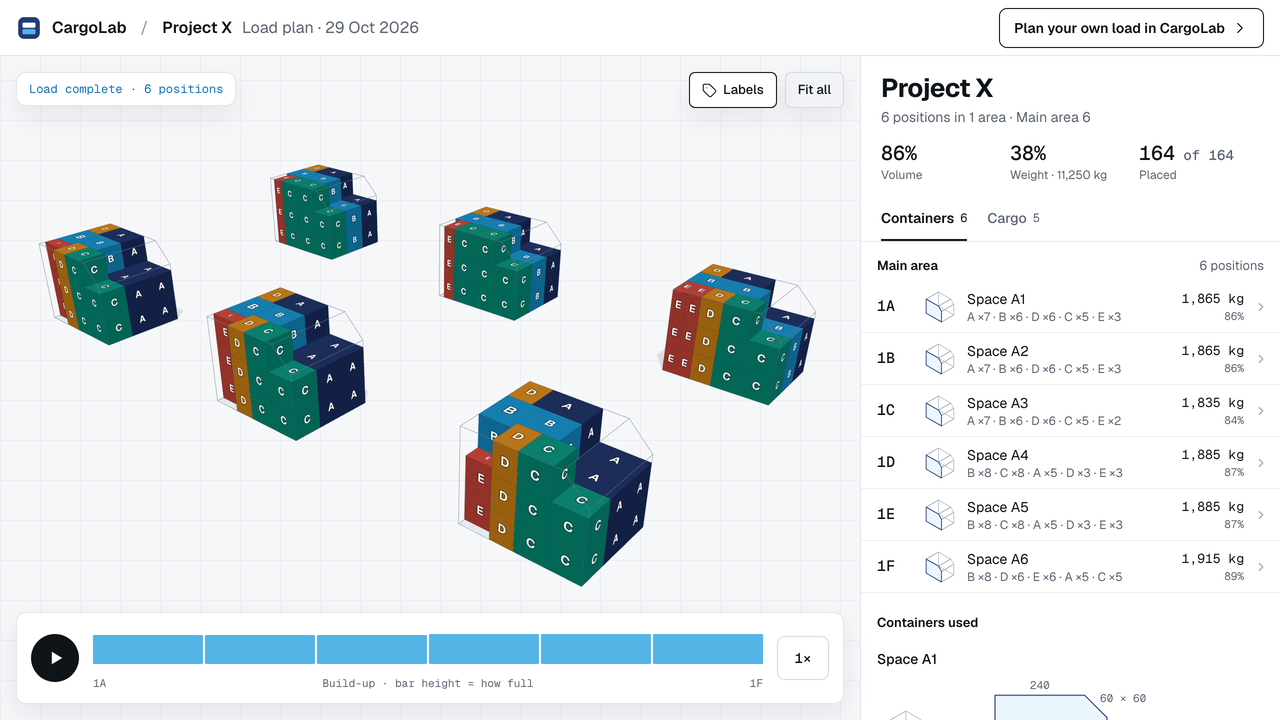
See a finished plan: open the fictional Project X example in 3D ↗ (no account needed). A plan in CargoLab is a preliminary proposal: check the real equipment and cargo, and the carrier makes the final decision.